Tuesday, 23 December 2014

Spotlight in Yosemite: ugh.

Getting tired of Spotlight in Yosemite being useless in comparison to Mavericks? Edit its shortcut to pop the Finder search bar instead. Bit of a poor cousin to Spotlight in earlier versions of OSX which were much better: didn't block the screen, allowed you to open the enclosing folder, and more.

Apple Menu > System Preferences > Spotlight. Change the keyboard shortcut you are familiar with to open the Finder Search window instead.


Now it'll open like below instead, and the results are easier to deal with...


Also consider replacing Spotlight functionality with Alfred. The freeware version is okay, I haven't yet been keen on splashing oout £17 for the PowerPack...

Guy

Wednesday, 5 November 2014

Tidy up that messy Downloads folder with Applescript

You can use Apple's scripting language for some very useful tasks. Here I am gathering all of the mess in my Downloads folder into one folder and labelling the folder with today's date.

Select the following text:


set foldername to ("Downloads " & short date string of (current date))
set docsfolder to (path to documents folder) as string

tell application "Finder"
if not (exists folder (docsfolder & foldername)) then
make new folder at docsfolder with properties {name:foldername}
end if
move items of (path to downloads folder) to folder (docsfolder & foldername)
end tell
tell application "Finder"
move folder (docsfolder & foldername) to (path to downloads folder)
end tell


Open the Script Editor from your Utilities folder and paste the text into the 'untitled' window. Click "Compile" and then click Run if you would like to test it directly.
You can save the script as an application, placing that somewhere convenient to run when your downloads folder clogs up again. Choose File Menu... Save, and from the File Format menu choose Application.

The script works by first creating a folder in the Documents folder, then moves all the contents of the Downloads folder there, then moves that folder back into Downloads.


Create an OSX Service to fix non-functional "Move to DropBox" feature

Like many others I've been frustrated that the DropBox contextual menu has disappeared in OSX Yosemite 10.10 and doesn't seem to be getting updated in a hurry.

Here we can duplicate the DropBox contextual menu's action and even improve on it at the same time, by using the Automator application to create an OSX service, which will have the function of moving a file or folder to your DropBox and then reveal the item for further action.
  1. Open Automator from the Applications folder
  2. Choose to create a new Service
  3. Choose the options Service receives selected: Files or Folders in Finder
  4. Drag the Move Finder Items action from the middle column into your workflow window at right
  5. Select your DropBox folder for the Move Finder Items To: option
  6. Drag the Reveal Finder Items action from the middle column into your workflow window at right
  7. Save the workflow from the File Menu, naming it Move to DropBox. The file when saved ends up in your user's Library/Services folder. You can edit it if you want to change the way it works, or duplicate it and target specific project folders.
Then test it out: right-click a file or folder in the Finder, and choose Move to DropBox from the Services sub-menu. Note that if a file with the same name already exists at the destnation no action will occur.

Please leave a comment if it's helped you. Thanks!

Guy Hemmings

Essex, England.


Thursday, 31 October 2013

Fix for Apple Cinema Display power supply failure

My 20" Cinema Display failed, the LED giving the short long short flashing error message with the white LED. I had read on the net of a solution which involved messing about with tiny bits of tape to isolate the centre pin of the connector to the screen, and reckoned that repair would not last more than a few insertions of the connector before it would fail again.

I took apart the power supply by sawing through the shell on the three clear edges carefully
so I could then crack it open.

After lifting out the board I removed the two screws holding the internal connector and on turning it upside down noticed that the centre pin was not isolated due to a surface mount resistor in there connecting to one of the other terminals. Follwing the idea of isolating the centre terminal, I desoldered the resistor, and bingo! the screen works perfectly now, and it is a proper fix.


Friday, 23 August 2013

iPhone: Tired of overtyping names when IOS doesn't capitalise "peter" as "Peter"?

Takes names like Peter, Mark, Jack and John. They are also nouns so IOS won't expect to capitalise them even if they are names in the Contacts.

Simple solution is to create keyboard shortcuts for all of them.

Settings > General > Keyboard > Shortcuts
Add a shortcut for John:


Now when you type the word "john" it will capitalise it for you to "John". Here are a few starting suggestions...


Wednesday, 22 May 2013

"I never knew you could do that!" for iPhone

General
  • Tap top of display (where time is displayed) to go to top of page or top of long list
  • Access single character from other keyboard by hold down on "123" and slide to desired character. After typing it flips back to original keyboard
  • Keyboard shortcuts for common phrases or typos in Settings.. General.. Keyboard.. Shortcuts. Great for changing "peter" the verb to "Peter" the name automatically, and autocompleting long email addresses, or pasting complete paragraphs of text.
  • Shake to undo typing or dictation
  • Quick access music from lock screen by pressing home button twice
  • Reader button in Safari to give large readable version of web page and option to email whole page
  • "Do not disturb" option to silence phone at night—allows favourites to break through
  • Reminders can be location-aware, say where you want to be reminded as well as when

Camera
  • Camera exposure and focus by tap on screen
  • Second shutter release with volume controls
  • Headset shutter release with its volume controls
  • Switch from photo browse to camera by pressing volume keys
  • Quick access camera from lock screen by sliding camera icon
  • Change panoramic photo rotate direction with double tap

Emails
  • Swipe to delete emails
  • Quick access to draft emails by holding down on 'new message' button
  • Separate signatures for email accounts
  • Make email text larger in Accessibility preference

Phone and SMS
  • Reply to phonecall with SMS by tapping white phone icon on incoming call, and choosing quick response SMS
  • Two taps on 'off' button to divert call to voicemail, one to just silence the ringer while you exit room to take the call.
  • "Send as SMS" option in Messages allows to send either as iMessage or regular SMS
  • SMS text too small? Make SMS text larger in Accessibility preference

Add your tips in the comments...

TimeMachine disk out of space? Sort it with Carbon Copy Cloner

If your Time Machine drive is running out of space and you want to keep a nice long backup trail, you can migrate the data from a smaller disk to a larger one with Carbon Copy Cloner using the "block copy" method. It works a treat, and allows to you to keep a nice long backup history instead of older backups being removed due to lack of space. The process takes a good while as in my case I was cloning over 400Gb to the new drive.


Can I use Carbon Copy Cloner to clone my Time Machine backup?

For important, albeit technical reasons, Carbon Copy Cloner will avoid backing up a Time Machine backup set in a file-level copy. It is possible, however, to clone a Time Machine volume with CCC using a block-level copy:
  1. Enable the "Block copy" button in CCC's preferences: choose "Preferences..." from the Carbon Copy Cloner menu and check the box to "Indicate when a block-level clone is possible"
  2. Choose your source and destination volumes in CCC's main window
  3. Click the "Block copy" button to require a block-level copy
  4. Click the Clone button

Carbon Copy Cloner has saved the day for me in many situations and is very well worth the $25.

Saturday, 11 May 2013

Am I seeing things? Floppy disk? Windows 8 password reset options...

I forgot my password for Windows 8. So I click Reset Password. And this comes up:


Fair enough. But see what happens when I click Next:


Errm. Insert a floppy disk. You gotta be joking! Is MS taking us back to 80's technology to reset our password? and how many computers that can run Windows 8 actually have a floppy disk drive? Apple stopped using them in 1998—15 years ago. And I'll bet they feature in very few Windows PCs these days either…

The email address won't let me in either:


Now what? I can't get in… 

Friday, 30 November 2012

Use "shortcuts" to fix typos and paste in awkward text...

Some suggested shortcuts...
On the iPhone and iPad, there is a shortcut feature which means that instead of typing "See my website for details" I can type "smw" and it will expand to the full text.

Or instead of typing out a long complicated email address "guy.hemmings@essexmacsupport.co.uk", I can give it an abbreviation like "ghex".
Adding a shortcut
Go to the Settings App > General > Keyboard > Shortcuts. you'll see one already there "omw" for "On my way". To add a shortcut, press the [+] in the shortcuts window, type the phrase in full (or paste it in from elsewhere) and then enter the shortcut for it. Press Save.

The shortcut feature can be used to replace proper names that are also nouns or verbs e.g. when you type "peter" it can correct to "Peter" (you can always backspace over an incorrect usage of the word).


Monday, 9 July 2012

iPhone tip #2: read enlarged version of webpages

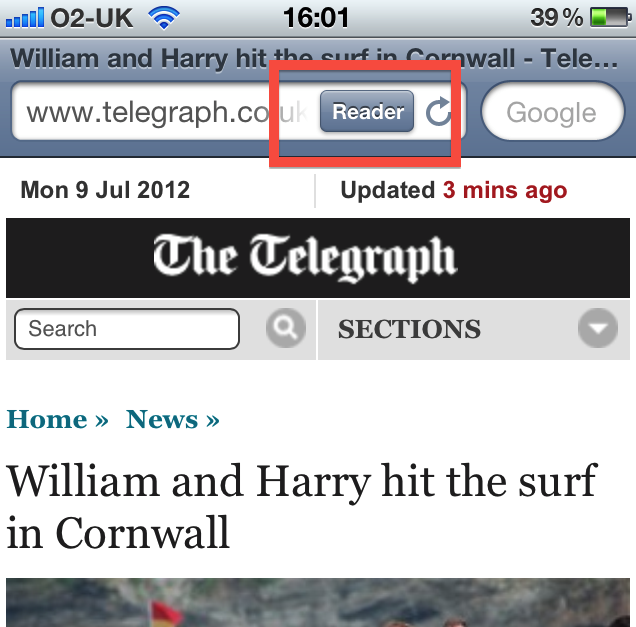
   When you see the 'Reader' icon in the menubar on iPhone or iPad, tap it to get a beautifully-formatted enlarged version of the webpage you are viewing, with no distracting adverts. Once viewing it in Reader mode, you have a lot of options including increasing or reducing the font size and sending the whole article by email.

iPhone tip #1: go straight to the top!

On the iPhone, where you are viewing a lot of data (say in Contacts) or at the end of a long webpage in Safari, tap the time display at the top of the screen to rapidly scroll right to the top of the page.

Thursday, 8 March 2012

Sweet addition for Apple Mail—MailTabs

Just added MailTabs http://simplicity.fm/mailtabs/ to Apple Mail and it makes life much easier, adding tabs for opened and new emails instead of spawning new windows each time.

"MailTabs for Mail.app is a unique plug-in that organizes all your open email messages under a simple tab arrangement just like the tabs in your browser."


It's "donationware" so do consider the work put in by the developer and give a donation...


In conjunction with WideMail http://widemailplugin.com/ you get a very flexible, easy to use mail application. WideMail gives a three-pane window, showing the mailboxes, message list and a preview of the selected message.

Thursday, 27 October 2011

User Library in OSX 10.7 Lion, 10.8 Mountain Lion, 10.9 Mavericks, 10.10 Yosemite

If you wonder why you can no longer see your user Library folder in any version of OSX after Snow Leopard, it's because Apple in their wisdom thought it better to hide sensitive files and folders from the user, in case their tampering upset things.

To have your user Library permanently showing again as in Snow Leopard:

Open Terminal from the Applications > Utilities folder
Paste in this command:

chflags nohidden ~/Library

and then press Return. After quitting Terminal, you will see that the folder has become visible again.


Tuesday, 11 October 2011

OSX and Swedish Campgrounds: the origin of the Command Key

From Folklore.org, a fascinating resource for insights into the history of the original Apple Macintosh


“We thought it was important for the user to be able to invoke every menu command directly from the keyboard, so we added a special key to the keyboard to invoke menu commands, just like our predecessor, Lisa. We called it the "Apple key"; when pressed in combination with another key, it selected the corresponding menu command. We displayed a little Apple logo on the right side of every menu item with a keyboard command, to associate the key with the command.


One day, late in the afternoon, Steve Jobs burst into the software fishbowl area in Bandley III, upset about something....”


Read more...

Monday, 10 October 2011

Tip on downloading MP3 and Quicktime movies in Safari

Safari tip: when MP3 files play in your browser window and you want to download the source file, and the link you have is directly to the MP3 file itself, you can't use the normal procedure of right-clicking on the MP3 link on a webpage.

Open the Downloads window from the Window menu, and drag the URL from the address bar into it, which will then download the MP3.


Wednesday, 5 October 2011

The Divine Perspective


The man was taking it easy, lying on the grass and looking up at the clouds. He was identifying shapes when he decided to talk to God.
“God," he said, "how long is a million years?”
God answered, “In my frame of reference, it's about a minute.”
The man asked, “God, how much is a million dollars?”
God answered, “To me, it's a penny.”
The man then asked, “God, can I have a penny?”
God answered, “Sure, in a minute.”

Sunday, 31 July 2011

Writing an iPhoto album to CD, keeping pictures in order


When you burn a CD of photos from an album in iPhoto, it may not keep the order you intended. This video shows how to burn them to a CD so that they stay in order as in the album. Click to play the video.

Wednesday, 22 June 2011

OS X Text editing tips

If you do a lot of text entry in OSX these tips should be handy:


Deletion
  • Alt-backspace to delete the word to the left of the cursor
  • Alt-delete to delete the word to the right of the cursor
  • Command-backspace to delete back to the beginning of the current line
Selection
  • Shift with arrow keys selects by character
  • Alt-Shift with arrow keys selects by word
  • Shift-Down arrow at the beginning of a line to select the line
  • Command-Shift-Down arrow at beginning to select a whole paragraph
  • Command-Shift-Right arrow to select to the end of the line
In Microsoft Word (and also in TextEdit from the Applications folder), you can select text discontiguously by pressing Alt and then dragging to marquee with the mouse, great for bolding hanging text.


Select text in PDF files with the same technique (pressing Alt and dragging) to copy the text for pasting elsewhere.

No forward delete on your MacBook or MacBook Pro or Apple Wireless keyboard? Press FN and backspace to delete forwards.